
Getting started
Every price, name and number in this guide is invented test data, shown only as an example — any resemblance to real companies is coincidental. Real figures appear once you register.
From opening an account to your first order.
Opening an account
- On our website, select Sign in, then Register.
- Choose Company or Person.
- Enter your name, e-mail, phone and a password.
- Enter your company details and billing address. Select Open the account.
- Open the e-mail we send you and select the link in it. The panel opens once your e-mail is confirmed.
Before we verify your company
After you register, we check your company details. Often this happens at once. Sometimes a person checks them, which takes longer. Until we verify them:
- you can browse the catalogue with your prices, fill in your profile and write to us
- you cannot place orders, add a card or make payments
Buttons you cannot use yet are greyed out. Hover over one to see why. The Dashboard shows where your verification stands.
To correct your company details, open Profile → Company and select Request a change. See Profile.
The panel
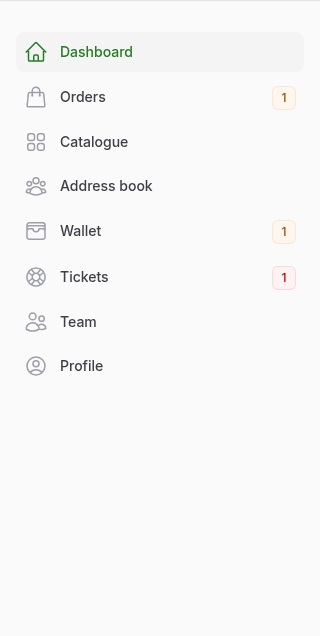
The panel has three areas: the left menu, the top bar and the page.
The left menu lists the sections you can open. Which ones you see depends on your permissions. A number beside a section shows what waits for you, such as unpaid orders.
The top bar, from left to right:
- Search. Find a product by its SKU, or an order by its number or tracking number.
- Wallet . The money you can spend now. Select it to see your balance and credit line.
- Cart . The products you picked for your next order.
- Notifications . News about your orders, payments and tickets.
- Your initials. Your profile, the panel language and Sign out.

On a phone, the menu is in the bar at the bottom: Search, Catalogue, Orders, Tickets and Menu.
Changing the language
Select your initials in the top-right corner and choose the language. It changes the panel only for you, not for your team.
Your first order
- Open Catalogue and add products to the cart. See Catalogue.
- Select Proceed to order in the cart. See Placing an order.
Last updated October 1, 2026