
Wallet
Every price, name and number in this guide is invented test data, shown only as an example — any resemblance to real companies is coincidental. Real figures appear once you register.
Wallet shows your money: balance, credit line, payments due and cards.
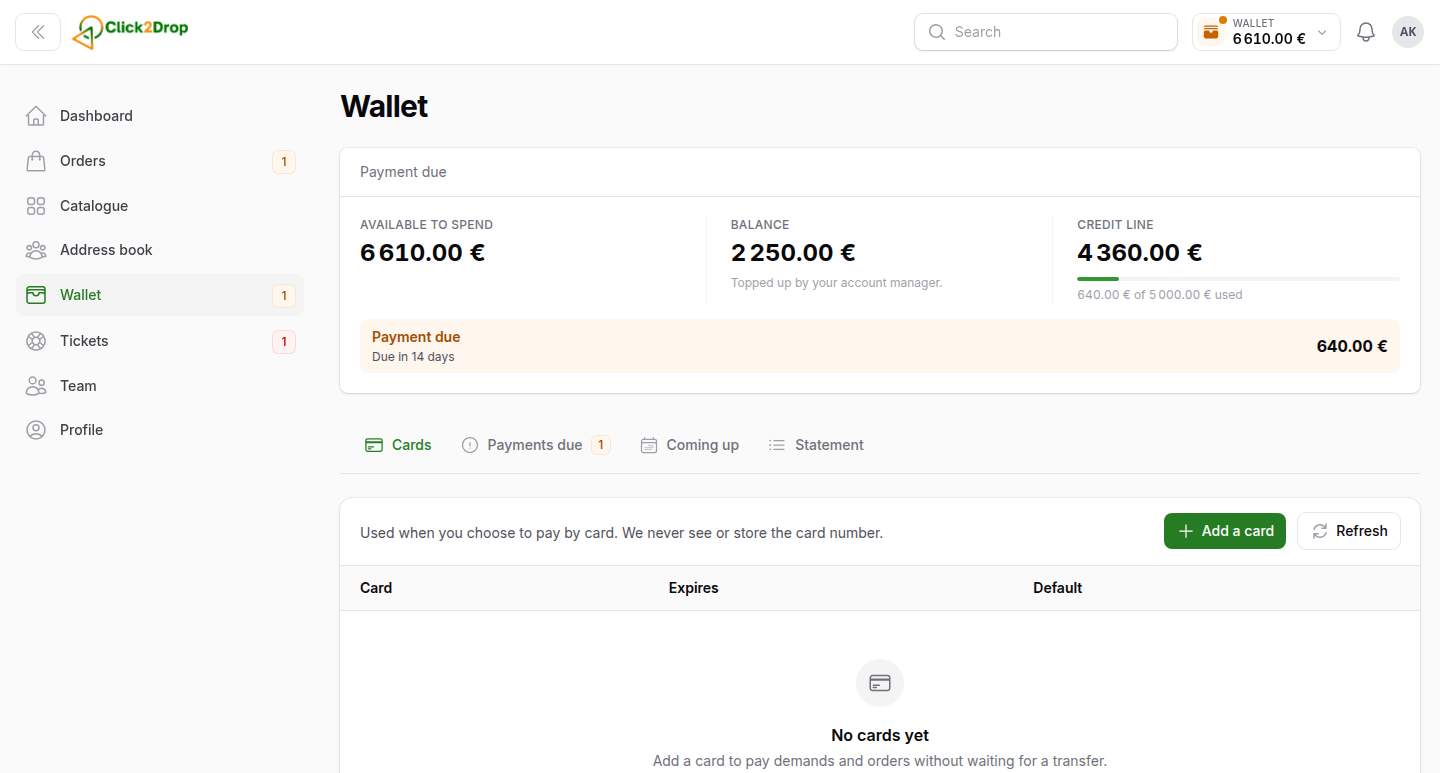
Your account
- Available to spend. Your balance plus the unused part of your credit line.
- Balance. Money on your account, such as refunds. You cannot top it up yourself.
- Credit line. The credit you can still use. Below it, how much of your limit is used.
A coloured strip appears when a payment is due or overdue, or when your credit line is frozen. The same figures are in the top bar, under Wallet.
How credit works
- When you pay with your credit line, the amount appears in Coming up, with the date it falls due.
- On that date, we issue a payment. It moves to Payments due, with its own due date, and you get a notification.
- Pay it by its due date.
To keep your credit line open, pay at least the minimum shown on the payment. This share depends on your account terms.
Profile → Terms shows how long you have to pay, the minimum share and whether an overdue payment freezes your credit line.
A frozen credit line cannot pay for new orders. You can still pay with your balance or a card. The credit line opens again by itself once the overdue payments are paid in full.
Cards
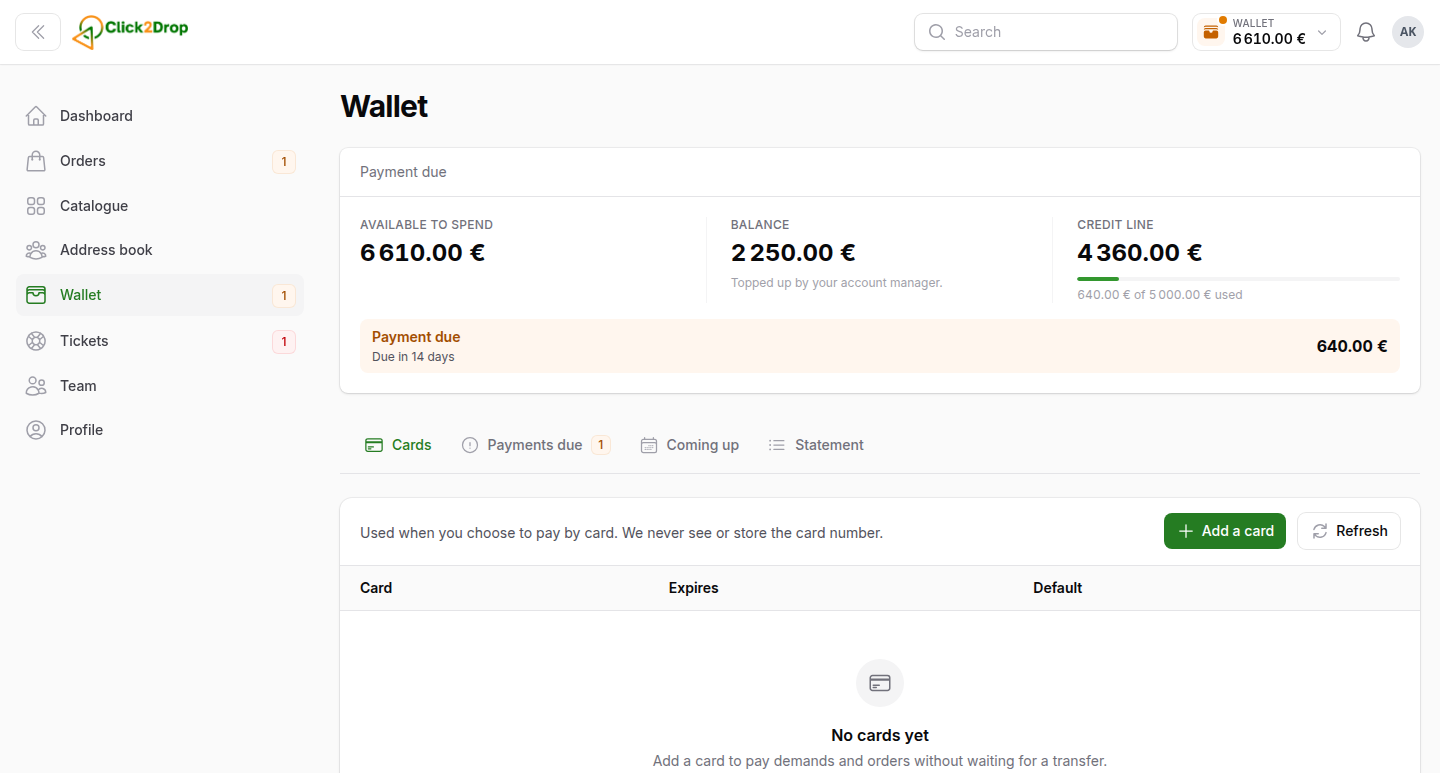
- Select Add a card.
- Enter the card number, expiry date and CVC. Your bank may ask you to confirm.
For each card, you can choose Use by default, Name the card or Remove. The Standard way of paying uses your default card. Cards can be added once we verify your company.
Payments due
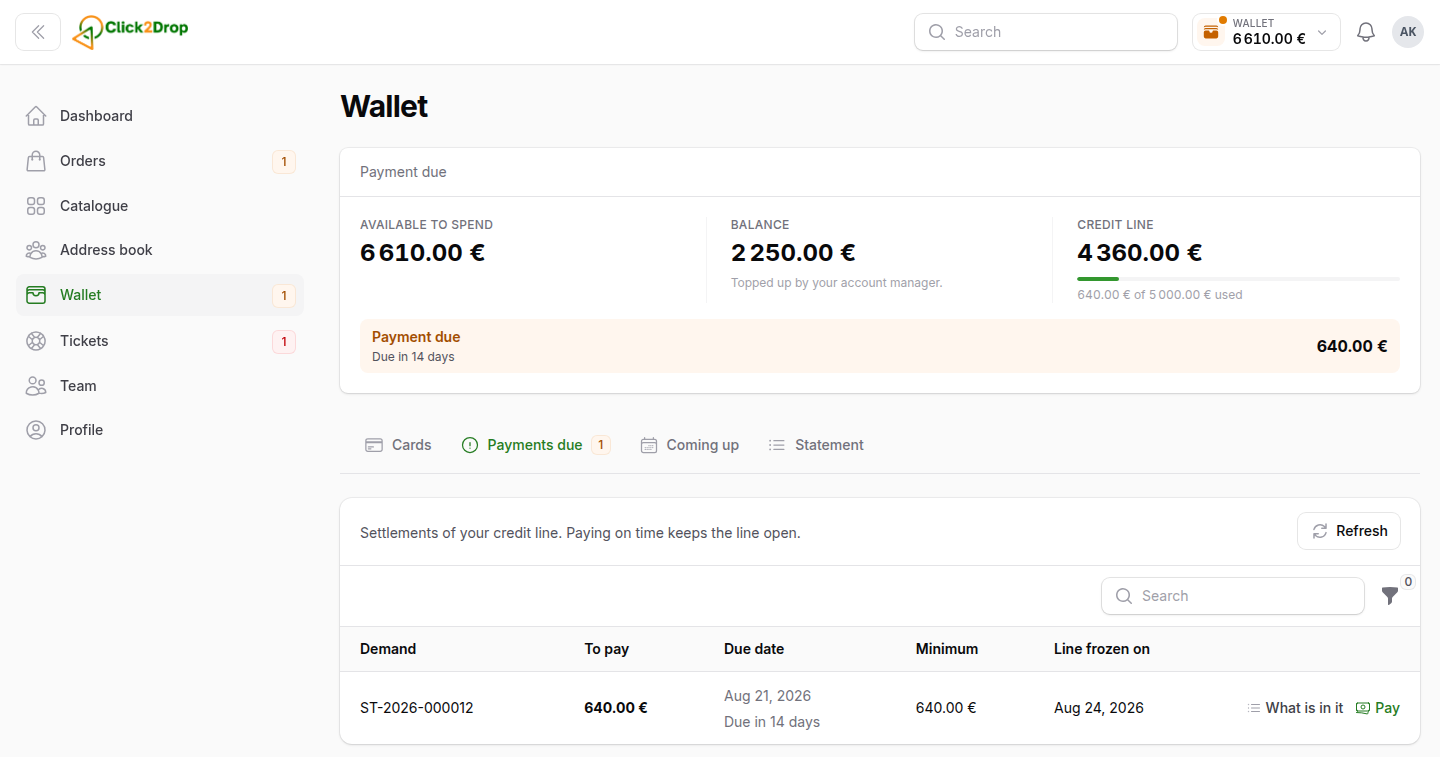
- Select Pay on the row.
- Choose a card, your balance or a bank transfer. By card or from your balance, you can pay part of the amount.
- Select Pay now.
With Bank transfer, the transfer details open: our bank account, the amount and the reference. Quote the reference in your transfer, or we cannot match it. The payment waits until the money arrives.
The row menu has What is in it: the orders the payment covers, the payments made and its history.
If your bank asks you to confirm a card payment, a notice with Confirm payment appears above the table.
Coming up
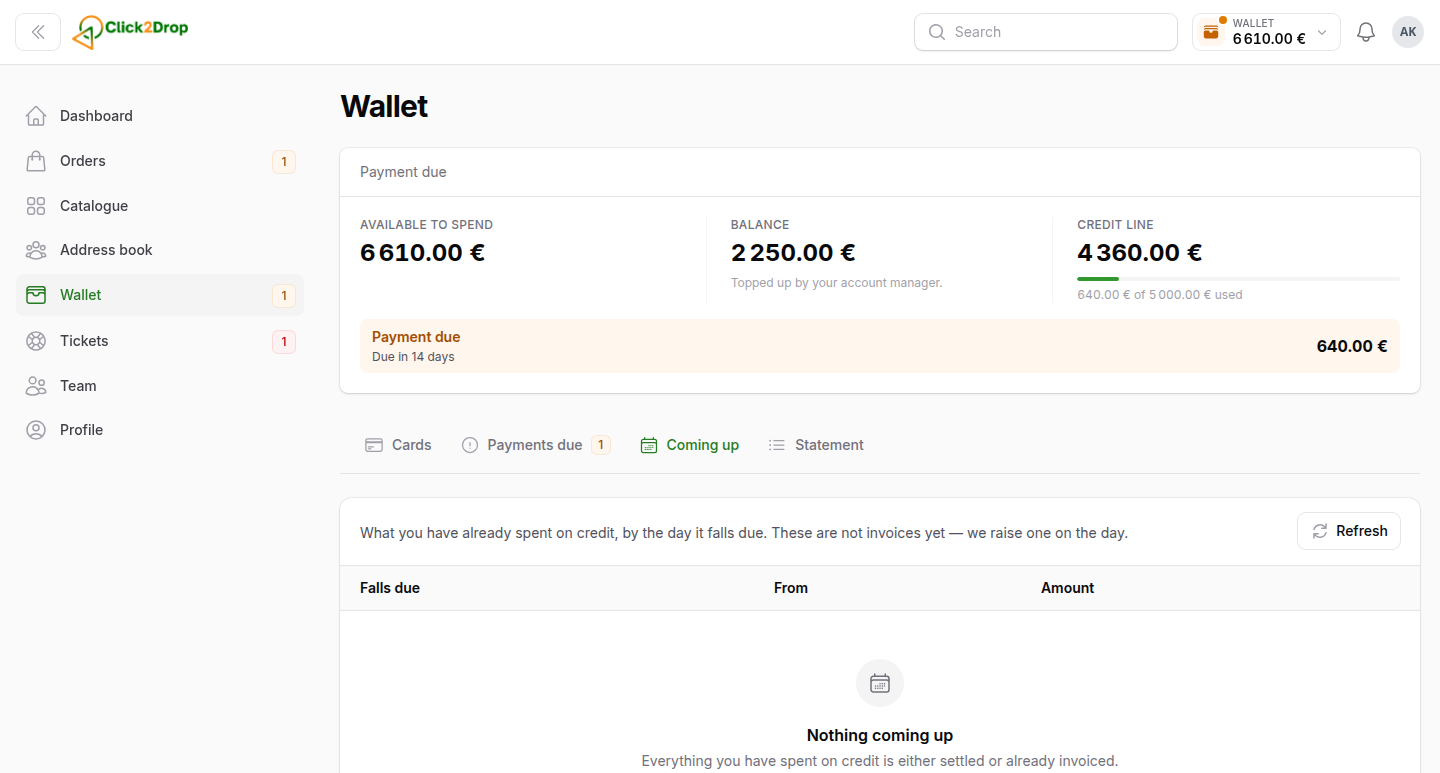
Credit you used that is not due yet, by date. To pay early, select Pay now on a row. To pay several, tick them and select Pay selected. The amount then moves to Payments due.
Statement
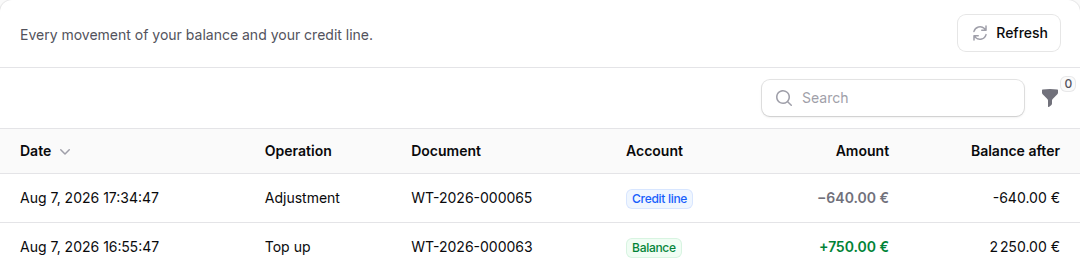
Every movement of money: payments, refunds and adjustments, with the source it came from: card, credit line or balance. Details shows how one payment was split between sources. Filter by operation, source, status or period. Export saves the list.
Other tabs
- COD money. Money couriers collect for you. See Cash on delivery.
- Old platform. Only for accounts moved from our old platform. The old operations, for reading only.
You see Wallet if you have the wallet permission.
Last updated September 28, 2026